
The year is 2026, and the convenience of starting your car with a tap on your smartphone is more integrated into daily life than ever before. From pre-warming your cabin on a frosty morning to cooling it down before you even step outside, remote start apps and other connected car services have revolutionized vehicle access and comfort. However, few things are as frustrating as opening your app, ready to command your car, only to be greeted by the dreaded “Offline” status. This seemingly simple message can halt your plans and lead to significant remote vehicle access issues, leaving you wondering why your advanced vehicle seems to have lost its digital voice.
When your car’s satellite remote start app reports an “Offline” status, it’s essentially a communication breakdown. Your smartphone app, relying on cellular or satellite networks, can’t establish a connection with your car’s onboard telematics module. This could be due to a myriad of reasons, ranging from simple app glitches to more complex vehicle system issues, or even backend server problems affecting the service. But don’t panic! This comprehensive 2026 guide is designed to help you troubleshoot, diagnose, and ultimately resolve the “Offline” status, showing you How to fix “Offline” status on your car’s satellite remote start app, getting you back to seamless remote control of your vehicle. We’ll leverage the latest understanding of vehicle connectivity to provide you with actionable steps, ensuring your car is always within reach, digitally speaking.
Understanding the “Offline” Dilemma: Why Your Car Disconnects
Before diving into solutions, it’s crucial to understand what “offline” truly signifies in the context of your car’s remote start system. Your vehicle’s remote start functionality relies on a sophisticated network of hardware and software, part of its broader connected car services ecosystem. This includes a dedicated telematics control unit (TCU), sometimes referred to as a Vehicle Communication Module (VCM), within your car, a cellular or satellite modem, an antenna, and the accompanying subscription service that allows your car to communicate with the outside world – and your app.
When your app shows “Offline,” it means one or more links in this communication chain are broken. The TCU isn’t able to send its status (like location, fuel level, or lock status, which includes crucial GPS tracking functionality) to the cloud, nor can it receive commands (like “start engine” or “lock doors”) from your app. This can stem from various sources, including power issues, network problems, software bugs, or even physical obstructions. Recognizing these potential culprits is the first step toward a successful resolution.
The Core Components of Connectivity
To fully grasp the “offline” state, let’s briefly look at the key players in your car’s remote start ecosystem:
Telematics Control Unit (TCU): This is the brain of your car’s connectivity features. It manages communication, processes data, and executes commands.
Integrated Modem/Antenna: Responsible for sending and receiving signals over cellular or satellite networks. This is essentially your car’s “phone.”
Subscription Service: The backend infrastructure provided by your car manufacturer (e.g., OnStar, FordPass Connect, Subaru Starlink, Volvo On Call) that manages data flow between your car and your app.
Smartphone App: The interface you use to interact with your car.
Any disruption to these components can lead to an “Offline” status. Understanding this foundation empowers you to approach troubleshooting systematically.
First Line of Defense: Initial Checks and Quick Fixes
Often, the solution to an “Offline” status is simpler than you might imagine. Before delving into complex diagnostics, start with these fundamental checks and quick fixes. These steps address the most common reasons for connectivity issues and can save you significant time and effort.
1. The Power Play: Check Your Car’s Battery Health
One of the most frequent, yet overlooked, reasons for your car appearing “offline” is a weak or dying car battery. Modern vehicles are packed with electronics, and when the battery charge drops below a certain threshold, the car’s power management system prioritizes essential functions over non-critical ones like telematics connectivity.
As reported by many users, “When you get in your car after it does that, does the infotainment system go thru a full boot up? Sometimes this can be a sign of the car’s battery being weak. It’ll power down to preserve energy and kill the connectivity features.”
Symptoms of a Weak Battery:
Slow engine cranking (if you try to start it manually).
Infotainment system performing a full boot-up cycle every time you start the car.
Dashboard warning lights.
Other electrical quirks.
Action: If you suspect a weak battery, try driving your car for at least 30 minutes to allow the alternator to recharge it. If the problem persists, have your battery tested by a professional. A fully charged, healthy battery is paramount for consistent connectivity.
2. The App and Phone Refresh
Sometimes, the issue isn’t with your car at all, but with the conduit you’re using to connect to it: your smartphone and the app itself.
Restart the App: Close the remote start app completely (force quit it) and then reopen it. This can often resolve instances where the app is not responding or app freezing due to temporary software glitches.
Restart Your Smartphone: A full phone restart can resolve underlying network or software conflicts that might be preventing the app from communicating effectively.
Check App Permissions: Ensure your remote start app has all necessary permissions, especially location services. As seen with MyCar 2, “When asked for location permission, make sure to select “Always or All the time.” Without constant location access, some apps may struggle to maintain a connection or report accurate status.
Update the App: Always ensure your car’s remote start app is updated to the latest version. Developers frequently release updates to fix bugs and improve stability.
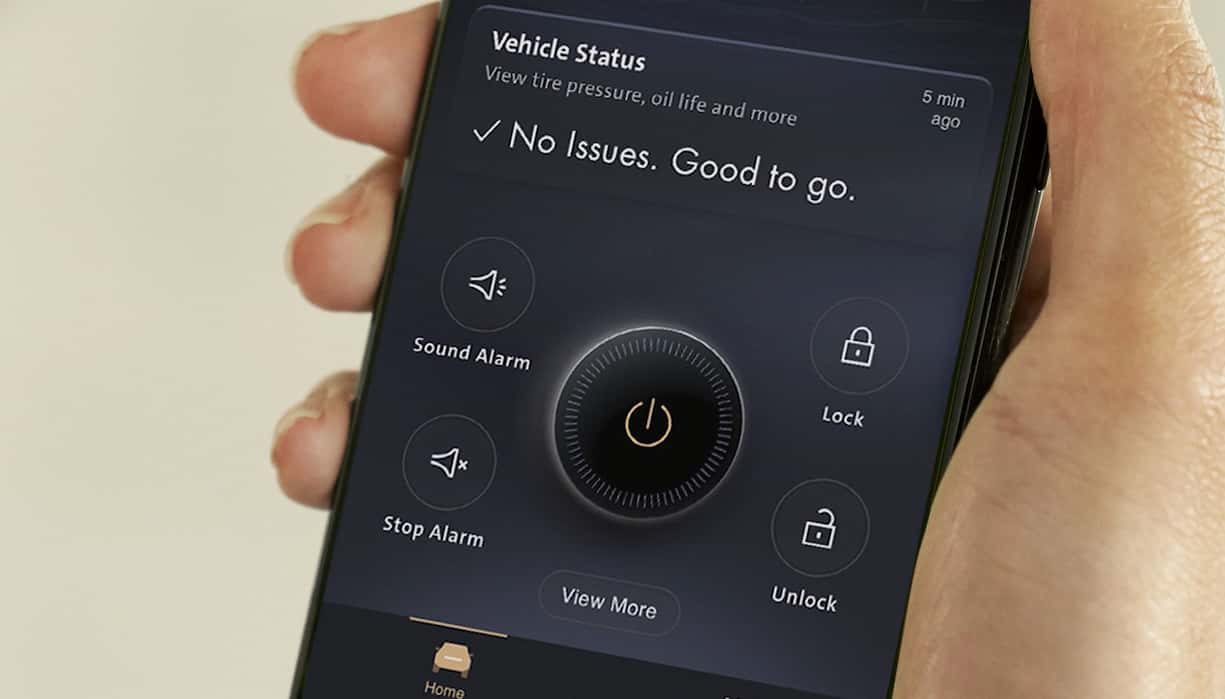
3. Verify Your Phone’s Internet Connection
It might sound obvious, but your phone needs a stable internet connection (Wi-Fi or cellular data) to send commands to your car’s remote start service.
Test Connectivity: Open a web browser or another app that requires internet access on your phone. If other apps are struggling, troubleshoot your phone’s internet connection first.
Switch Networks: If on Wi-Fi, try switching to cellular data, or vice-versa, to rule out a specific network issue.
4. Give Your Car a “Soft Reset”
Just like your phone or computer, your car’s electronic systems can benefit from a reset. This doesn’t involve disconnecting the battery (yet!), but rather a sequence of actions that can force the car’s modules to re-initialize.
Unlock and Power Cycle: For some vehicles, a specific sequence can kickstart connectivity. As observed with Volvo XC60/XC90 owners, “Try to remote start my car this morning and … To start charging in the new Volvo app, ensure your car is properly connected and configured. Some users have reported issues with charging, but a simple troubleshooting step is to unlock the car, power it on, drive out of the driveway, back in, and re-plug the charger.” While this example is for charging, the principle of unlocking, powering on, and driving a short distance can often force the car’s telematics module to re-establish its network connection.
Action: Go to your car, manually unlock it with the key fob, start the engine, let it run for a minute or two, then turn it off, exit, and lock it. Wait a few minutes before trying the app again.
5. Check Your Vehicle’s Location and Signal
While satellite remote start implies broad coverage, actual connectivity often relies on cellular networks.
Parking Location: Is your car parked in an area with poor cellular signal or weak cellular reception (e.g., underground garage, remote area, dense urban canyon)? Move your car to an open area with known good cellular coverage and wait a few minutes for it to re-establish connection.
Obstructions: Large metal structures or dense buildings can sometimes interfere with signal transmission.
Deeper Dive: System-Level Troubleshooting for Persistent Offline Status
If the initial quick fixes haven’t resolved the “Offline” status, and you’re still wondering How to fix “Offline” status on your car’s satellite remote start app, it’s time to dig deeper into your car’s internal systems and connectivity settings. These steps involve more intricate checks that address potential issues within the vehicle’s telematics unit or its network configuration.
1. The Infotainment System Reboot
Your car’s infotainment system is often deeply integrated with its telematics and connectivity modules. A full reboot of this system can sometimes clear internal software hang-ups that are preventing the car from communicating.
Action: Depending on your car model, you might be able to force a reboot of the infotainment system. This often involves holding down specific buttons (e.g., power button, volume knob, or a combination) for an extended period (10-30 seconds) until the screen goes black and restarts. Consult your car’s owner’s manual for specific instructions. After the system reboots, wait a few minutes for all modules to come online, then try your remote start app again.
2. Bluetooth as a Diagnostic Tool
Some modern remote start apps offer a direct Bluetooth connection to your vehicle, serving as a fallback or a diagnostic bridge when the cellular/satellite connection is down.
MyCar 2 Example: “The device seems offline. You can try connecting to your device using the new Bluetooth feature in your app and let us know when the app shows connected. Go to settings and then hardware settings. Then select Bluetooth, follow the steps to connect.”
Action: Check your app’s settings for a Bluetooth connectivity option. If available, try pairing your phone directly with your car via Bluetooth. If the app shows “connected” via Bluetooth, this indicates that the car’s internal systems are functional, narrowing the problem down to the cellular/satellite modem or network service. This information can be invaluable if you need to contact customer support.
3. Critically Examine SIM Card and APN Settings
Many car telematics systems, especially those relying on cellular networks for remote start, use an embedded SIM card. Just like your phone, this SIM card needs to be active and properly configured.
SIM Card Balance/Status: “From checking SIM card balance to verifying APN settings and power supply, this comprehensive 13-step guide helps you quickly troubleshoot and fix connectivity problems.” While primarily for GPS trackers, the principle applies directly to car telematics. If your car’s connectivity relies on a prepaid or data-limited plan, an expired balance could be the culprit. Contact your vehicle manufacturer’s connected services support to inquire about your car’s SIM card status and the health of its subscription data plan.
APN Settings (Access Point Name): The APN tells your car’s modem how to connect to the cellular network. Incorrect APN settings can prevent data transmission even if the SIM card is active. While these are usually pre-configured and not user-adjustable, severe software glitches or updates could theoretically corrupt them. This is typically something only a dealership or advanced technician can verify and correct. If you’ve exhausted all other options, mention this possibility to technical support.
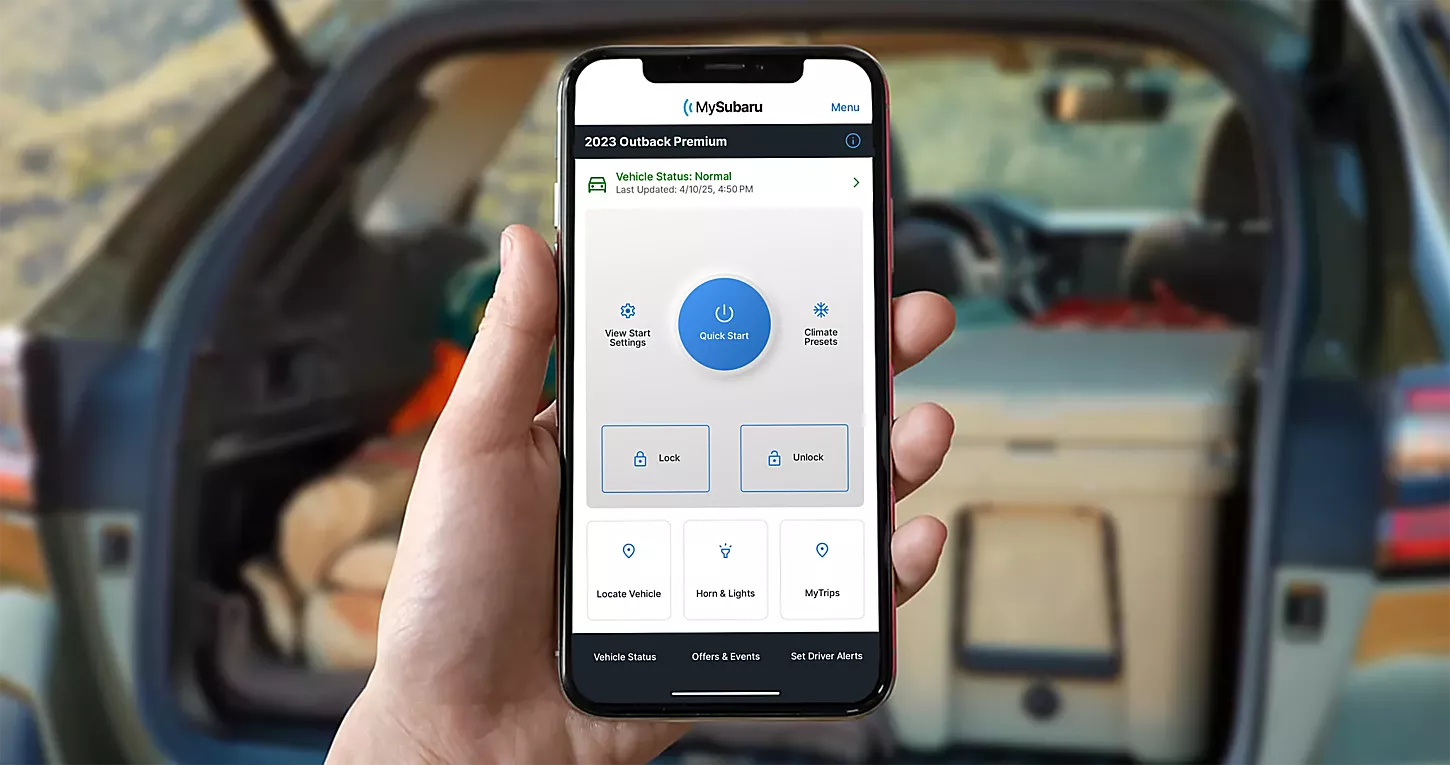
4. Vehicle Software and Firmware Updates
Modern cars are essentially computers on wheels, and their software requires regular updates. Outdated vehicle firmware can lead to a host of issues, including connectivity problems.
Action: Check if your vehicle has any pending software updates. Many vehicles now support over-the-air (OTA) updates, which can be initiated through the infotainment system or by parking your car in a good Wi-Fi zone. If your car requires a dealership visit for updates, schedule one. Keeping your car’s software current ensures optimal performance and compatibility with the latest app versions and network protocols.
5. The Hard Reset: Disconnecting the Car Battery
Proceed with caution! Disconnecting your car’s battery should be a last resort, as it can reset various electronic systems and potentially require reprogramming of certain features. However, it can also act as a “hard reboot” for all vehicle modules, including the telematics unit.
Action:
- Ensure your car is off and the key is removed from the ignition (or outside the vehicle for push-button start).
- Locate your car battery (usually under the hood or in the trunk).
- Using an appropriate wrench, disconnect the negative (-) terminal first, then the positive (+) terminal.
- Wait for at least 15-30 minutes to allow all residual power to drain from the system. Some recommend touching the disconnected positive and negative cables together (away from the battery terminals) to fully discharge any capacitors, but consult your car’s manual before doing so.
- Reconnect the positive (+) terminal first, then the negative (-) terminal.
- Start your car, let it run for a few minutes, and drive it for a short distance.
- After this, try your remote start app again.
Warning: Disconnecting the battery can sometimes trigger anti-theft systems, erase radio presets, or require recalibration of windows/sunroofs. Always refer to your vehicle’s owner’s manual before attempting this step. If unsure, seek professional assistance.
When to Call for Backup: Advanced Scenarios and Professional Help
If you’ve systematically worked through all the troubleshooting steps above and your car’s remote start app still stubbornly shows “Offline,” it’s likely time to escalate the issue. Certain problems require specialized tools, diagnostics, or expertise that only a professional can provide.
1. Subscription Service Status
It’s easy to overlook, but your remote start functionality almost certainly relies on an active subscription with your vehicle’s connected services provider (e.g., OnStar, FordPass Connect, Mercedes me connect, etc.).
Action: Log into your account on the manufacturer’s website or contact their customer support directly. Verify that your subscription is current, active, and covers remote start features. Sometimes, automatic renewals fail, or a trial period expires, leading to a sudden loss of connectivity.
2. Manufacturer-Specific Issues and Known Bugs
Certain vehicle models or software versions can have known bugs or common connectivity issues that are widely reported.
Community Forums: Check online forums specific to your car’s make and model (e.g., Ford F-150 forums, Chevrolet Traverse forums, Subaru Outback forums). Other owners might have encountered the exact same “Offline” problem and found a solution or confirmed it’s a known issue awaiting a patch.
Manufacturer Support: Car manufacturers often have dedicated support lines for their connected services. They might be aware of widespread issues or have specific diagnostic tools to check your car’s telematics status remotely.
![[Fixed] Ford App Remote Start Not Working - Techdim](https://automobilesat.com/wp-content/uploads/2026/05/Ford-App-Remote-Start-Not-Working.webp)
3. Telematics Control Unit (TCU) Malfunction
The TCU is a complex electronic component. Like any electronic device, it can fail. This could be due to:
Hardware Failure: A component within the TCU might have stopped working.
Firmware corruption or other software issues: The TCU’s internal software could become corrupted, preventing it from initializing or communicating.
Antenna Damage: The external antenna responsible for cellular/satellite reception could be damaged, leading to a complete loss of signal.
Action: If all other troubleshooting fails, a TCU malfunction is a strong possibility. This requires professional diagnosis. A dealership or an authorized service center will have the specialized tools for telematics system diagnostics to test the TCU, check signal strength, and determine if it needs to be repaired or replaced. This is often covered under your vehicle’s warranty if it’s still active.
4. Wiring or Fuse Issues
While less common for intermittent “Offline” statuses, a persistent problem could indicate an issue with the power supply to the telematics module.
Action: A technician can check the fuses related to the infotainment and telematics systems, as well as inspect the wiring for any damage or loose connections. This is best left to professionals due to the complexity of modern automotive wiring.
Proactive Measures: Preventing Future “Offline” Headaches in 2026
An ounce of prevention is worth a pound of cure, especially when it comes to vehicle connectivity. By adopting a few best practices, you can significantly reduce the likelihood of encountering the dreaded “Offline” status in the future.
1. Regular Car Usage and Battery Maintenance
As highlighted, a weak car battery is a primary culprit for connectivity issues.
Drive Regularly: If your car sits for extended periods, its 12V battery can discharge, impacting telematics. Make an effort to drive your car regularly, especially for longer durations (30+ minutes), to keep the battery topped up.
Battery Tender: For cars stored for weeks or months, consider using a smart battery tender (trickle charger) to maintain optimal battery voltage.
Annual Battery Check: Have your battery tested annually by a mechanic, especially as it ages (typically 3-5 years). Replacing a failing battery proactively can prevent many connectivity woes.
2. Keep All Software Updated
Software is the backbone of your car’s intelligence.
Vehicle Firmware: Stay vigilant for notifications about your car’s over-the-air (OTA) software updates. Install them promptly when safe and convenient. These updates often include bug fixes for connectivity, security enhancements, and new features.
Remote Start App: Enable automatic updates for your remote start app on your smartphone, or manually check for updates regularly in your app store.
Infotainment System: Ensure your infotainment system’s software is also up-to-date, as it often shares components and communication pathways with the telematics unit.
3. Monitor Your Connected Services Subscription
Don’t let your subscription lapse unexpectedly.
Set Reminders: If your subscription doesn’t auto-renew, set a reminder a month or two before its expiration date.
Review Statements: Periodically check your billing statements or online account for your connected services to ensure everything is in order.
4. Park in Connectivity-Friendly Locations
While not always possible, be mindful of where you park for extended periods.
Avoid Signal Dead Zones: If you know certain areas (e.g., deep underground garages, remote rural spots) have poor cellular reception, try to avoid parking there for long durations if you rely heavily on remote start.
Open Areas: Parking in open areas with good line-of-sight to cell towers generally ensures better signal strength for your car’s telematics.
5. Understand Your Car’s Specifics
Each manufacturer and model can have unique quirks.
Owner’s Manual: Familiarize yourself with the remote start and connectivity sections of your car’s owner’s manual. It often contains troubleshooting tips specific to your vehicle.
- Manufacturer Resources: Utilize the online resources, FAQs, and support forums provided by your car’s manufacturer. They are often excellent sources of information for common issues.
Conclusion: Reconnecting with Your Car in 2026
The “Offline” status on your car’s satellite remote start app can be a significant inconvenience, but it’s rarely an insurmountable problem. By systematically following the troubleshooting steps outlined in this 2026 guide, you can effectively diagnose and resolve most connectivity issues, learning How to fix “Offline” status on your car’s satellite remote start app. From checking the health of your car’s battery and refreshing your app to diving into system-level diagnostics like SIM card status and software updates, you’re now equipped with a robust toolkit.
Remember, modern vehicles are complex machines with intricate digital ecosystems. Patience and a methodical approach are your best allies in restoring communication. If, after all your efforts, your car remains offline, don’t hesitate to leverage the expertise of your dealership or the manufacturer’s connected services support. With these strategies, you can ensure your car remains connected, responsive, and ready to serve you at the tap of an app, keeping your 2026 driving experience seamless and connected.